Create and share the opening
Set the title, department, location, employment type, hiring manager, openings and target hire date. Open roles have a public careers URL; draft, on-hold and closed roles have distinct statuses.

Applicant tracking
Keep each job applicant connected to the role, CV, interview and hiring decision. OPleo gives Pakistan’s SMEs a recruitment pipeline inside the same workspace as their people operations.
An applicant tracking system should answer three practical questions: who applied, what happens next, and who owns the decision? OPleo tracks those handoffs through applied, screening, interview, offer, hired and rejected stages, with public application pages and private hiring records.
A candidate tracker is only useful if incoming applications and interview decisions reach the same record. Start with a job opening rather than a separate list of CVs: each application, interview and offer can be related to that role.
For example, a software house hiring an engineer and an operations coordinator needs to distinguish which role each applicant wants, which interview is scheduled and which offer is still awaiting a response. This is a workflow example, not a customer outcome.
Set the title, department, location, employment type, hiring manager, openings and target hire date. Open roles have a public careers URL; draft, on-hold and closed roles have distinct statuses.
An applicant submits name, email, optional phone and cover note, plus a validated CV. The public form does not require an OPleo account, and the application becomes a candidate record for that job.
Review the CV alongside candidate source, experience and notes. Move the applicant to Screening when the hiring team is ready, rather than treating a score as a hiring decision.
Schedule an interview, record feedback and recommendation, then prepare an offer or record rejection. Keep the decision in the candidate stage so the next reviewer can understand the current position.
The candidate pipeline displays Applied, Screening, Interview, Offer and Hired columns. A candidate’s stage selector also supports Rejected. Stage labels describe the current record; they do not replace interviews, references or the hiring manager’s review.
| Stage | Hiring team’s action | What to check |
|---|---|---|
| Applied | Review the role-linked application | CV, contact details and job fit |
| Screening | Record screening notes | Experience and requirements that need verification |
| Interview | Schedule and collect feedback | Interviewer, format, date and recommendation |
| Offer | Prepare and review the offer | Role, annual amount, currency and start date |
| Hired / Rejected | Record the outcome | Candidate stage and outstanding follow-up |
Candidates use the public application page and, when invited, token-protected response pages for interviews or offers. Interview and offer emails use the organisation’s configured recruitment sender and SMTP settings. The response links expire and expose the specific action rather than private workspace records.
This is not a permanent candidate account with a dashboard of every application. An interview response can record confirmation or a decline; an accepted offer updates the candidate stage to Hired. Do not assume that accepting an offer automatically creates an employee, issues a contract or completes onboarding.
Before choosing recruitment software for your SME, test the application file types, your hiring stages and your organisation’s email configuration. Keep real CVs and candidate details out of public product demonstrations.
Use a representative vacancy to validate the ATS before moving your current hiring list. Agree the job owner, stage meanings and interview reviewer. Test one application, a CV review, an interview record and an offer response with fictional data.
Then decide how existing applicants will be entered and how duplicate or stale records will be handled. A public job page supplies an intake path; it does not establish job-board distribution, automatic CV parsing, background checks or interview-video hosting.
A redacted role description, the interview stages your team uses, who sends invitations and who approves offers.
After hiring, confirm the employee’s designation, department, supervisor, joining date and portal email in employee management. Validate the handoff instead of assuming an automatic candidate-to-employee conversion.
Inside the product
Captured from OPleo’s product components with fictional demo records. These are product views, not customer results; each capture shows a separate workflow state.
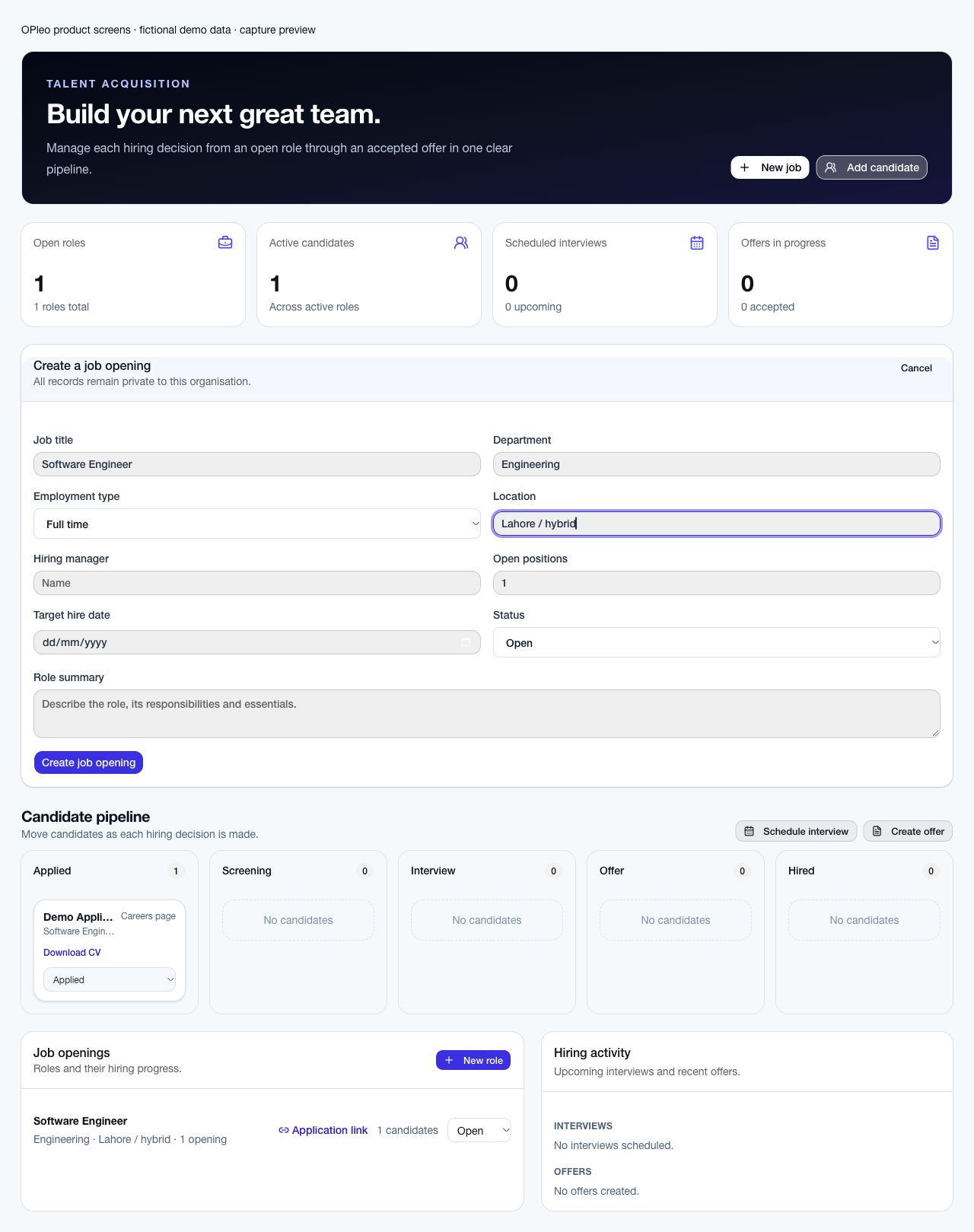
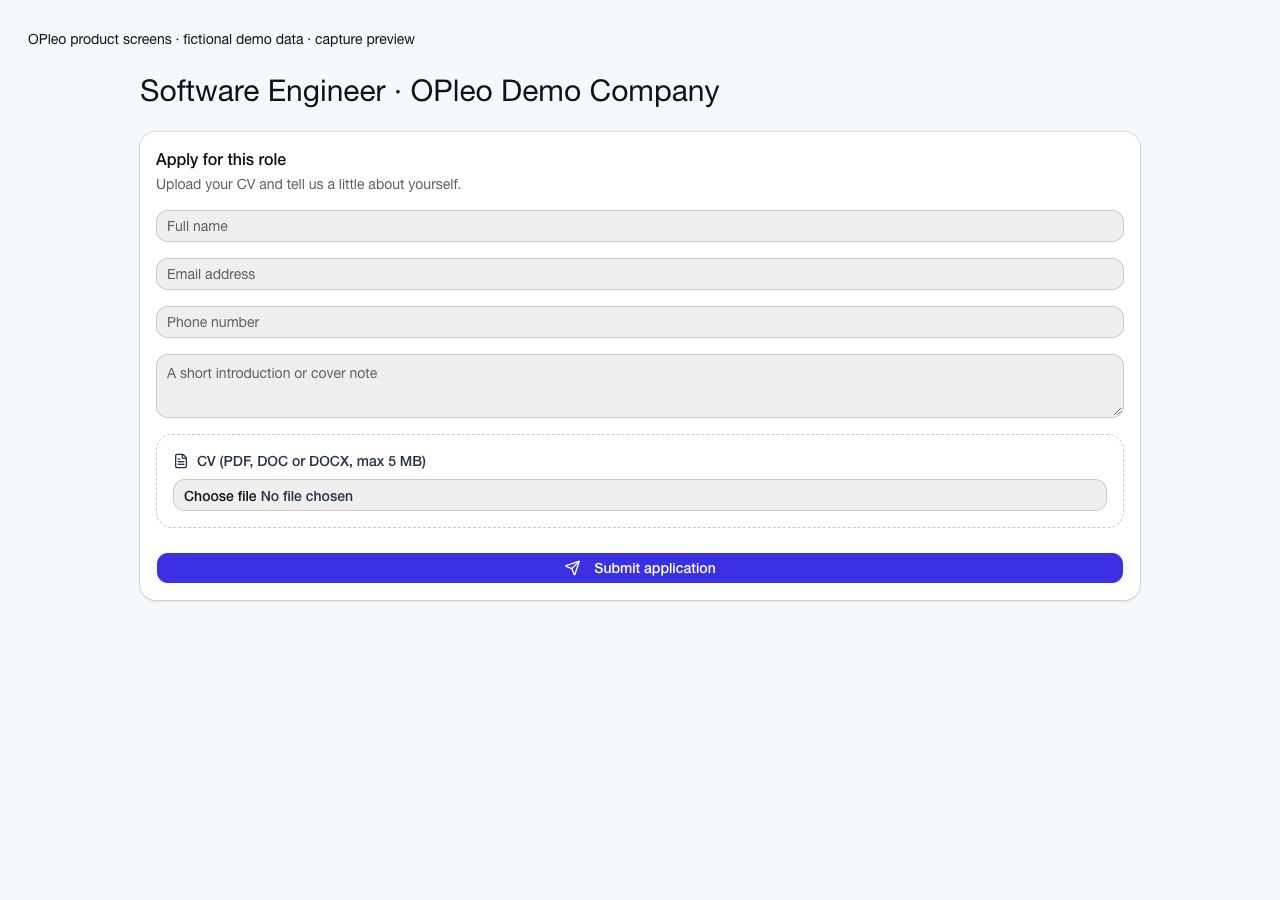
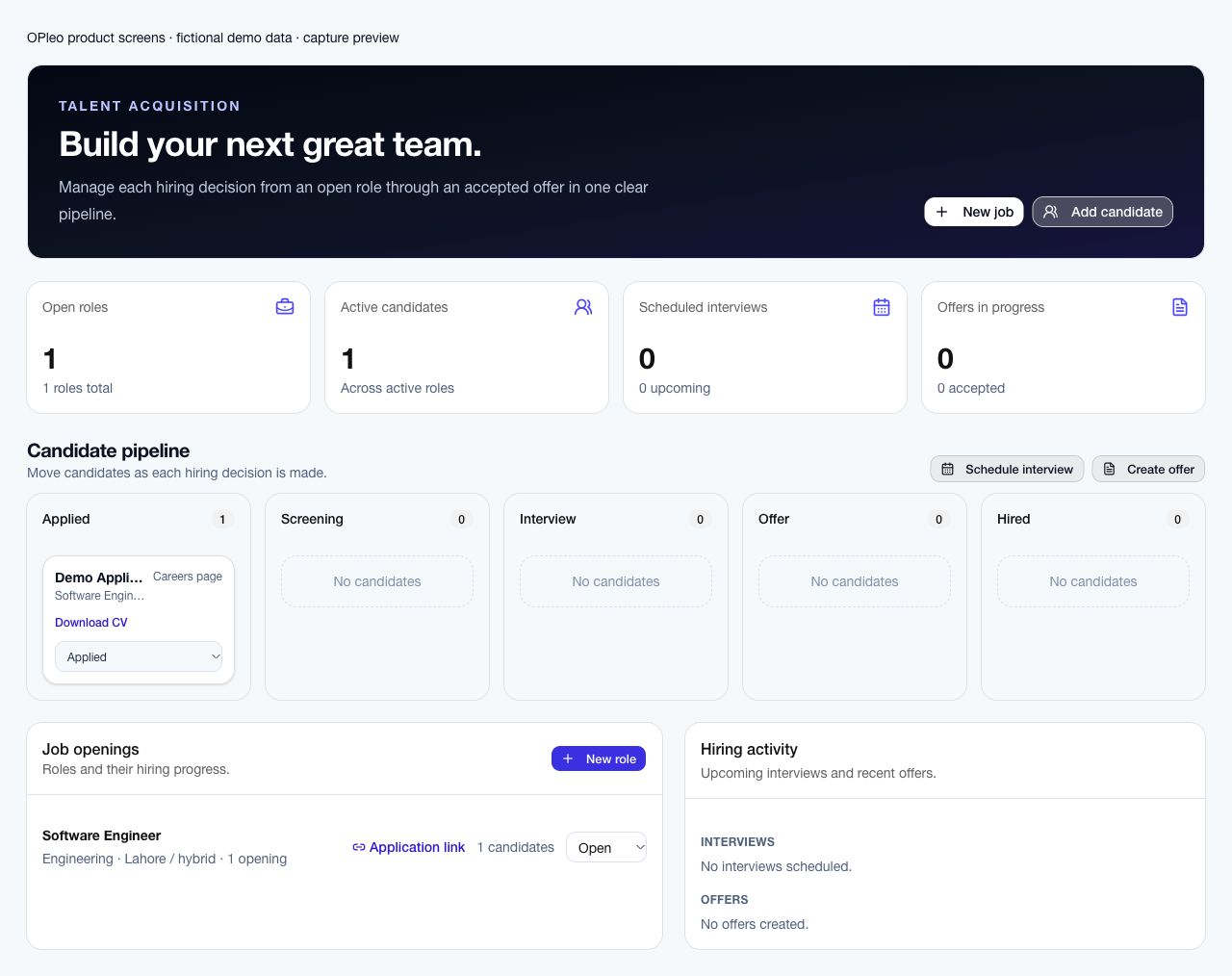
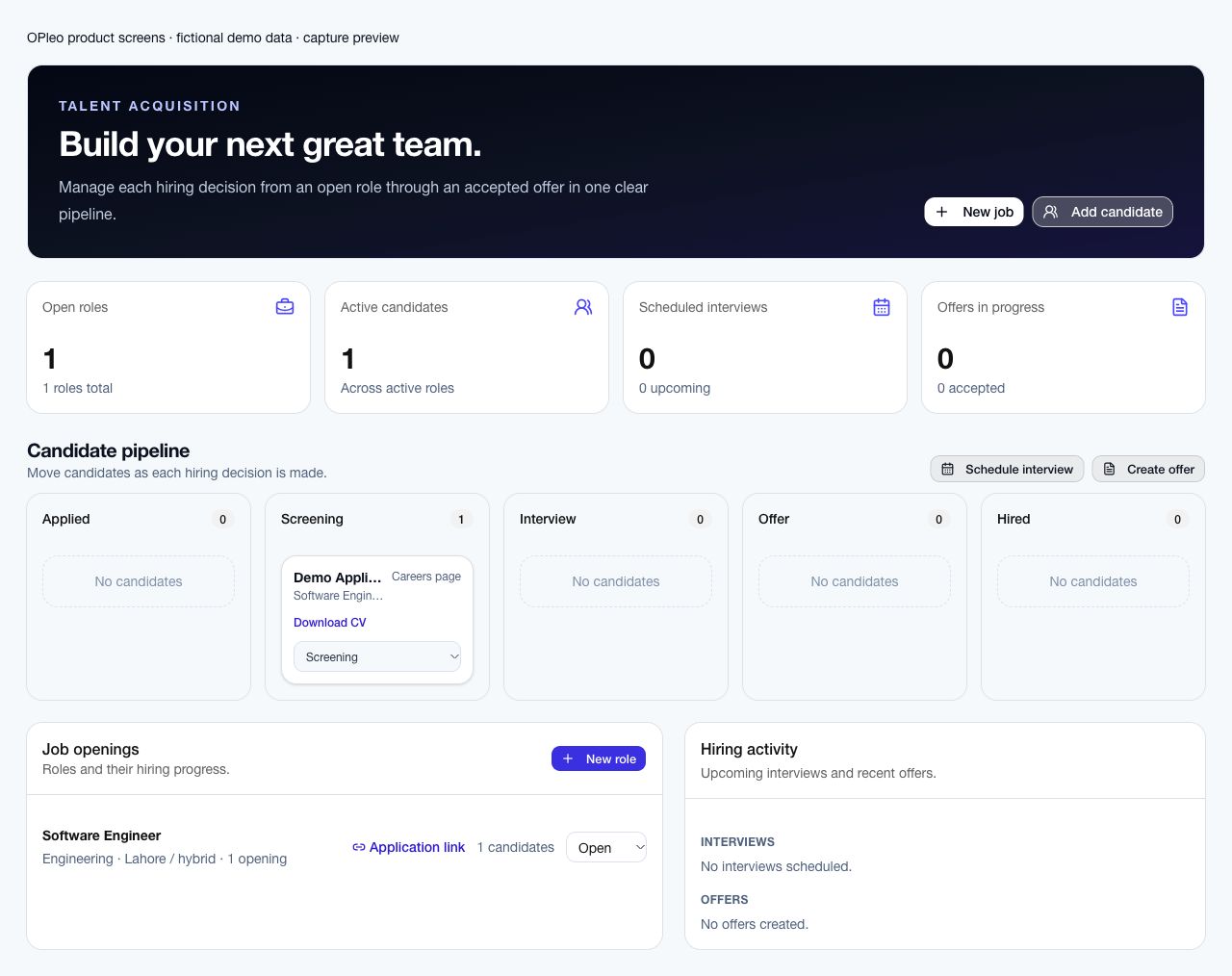
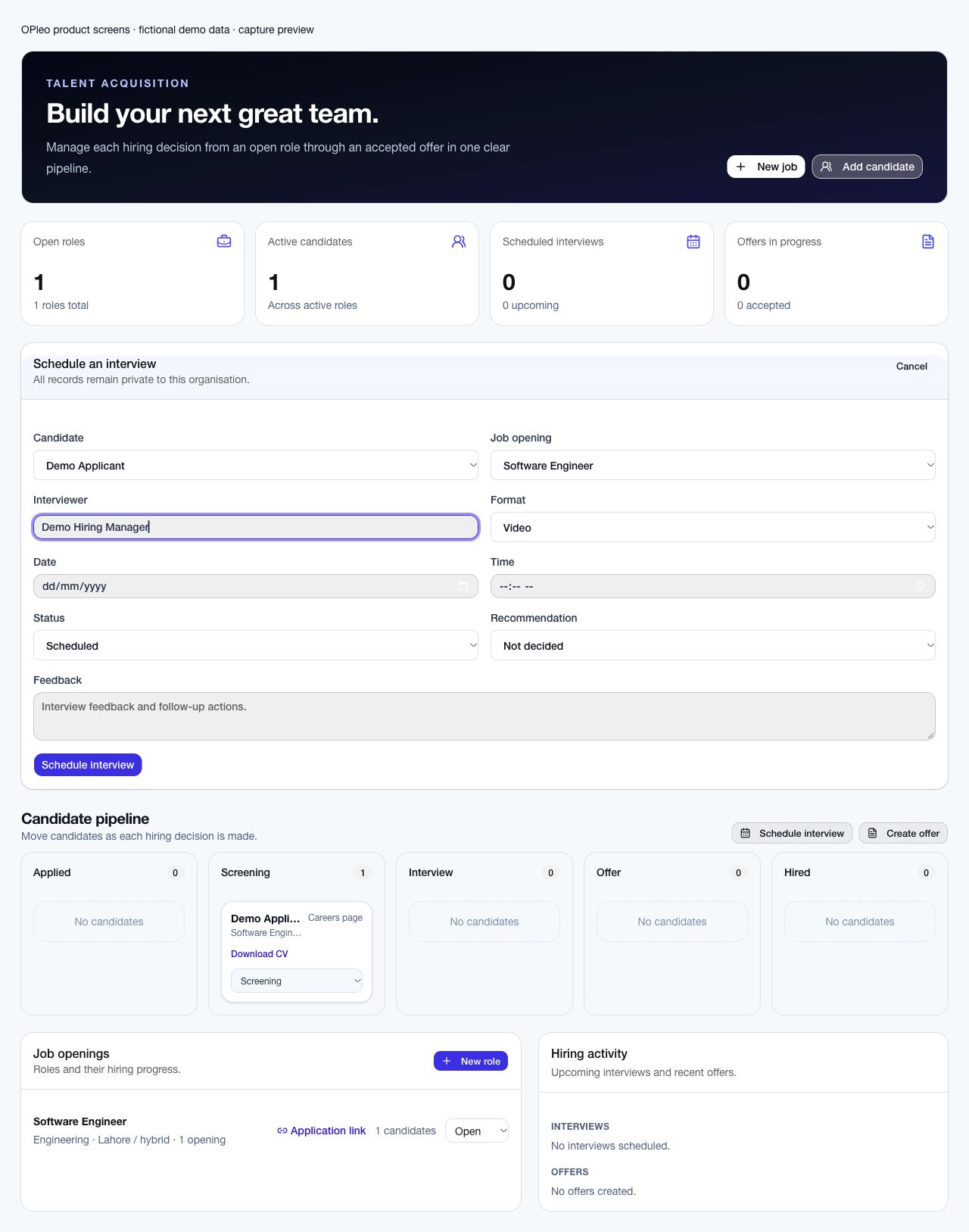
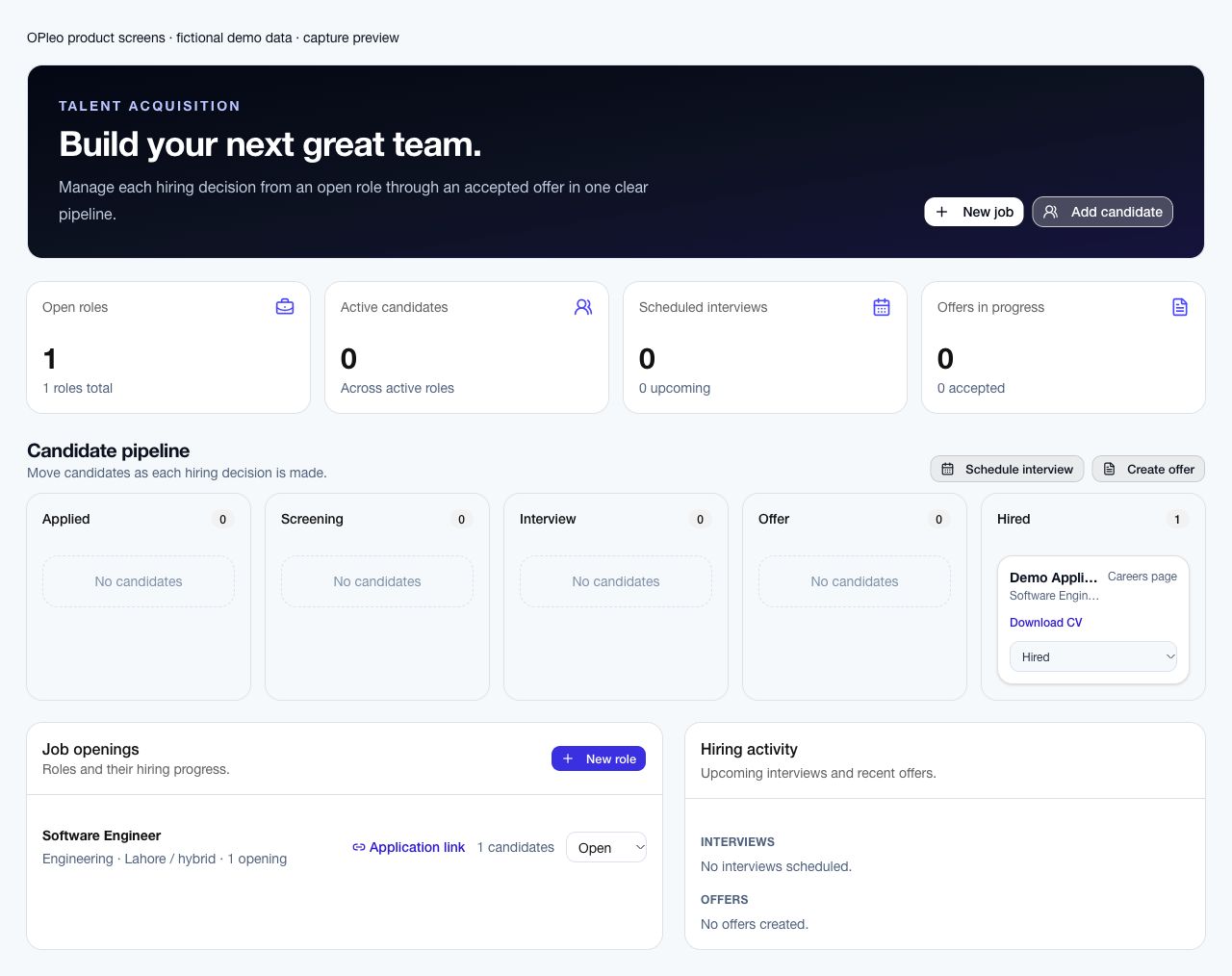
OPleo supports job openings, public applications, role-linked candidates, interview records and offers in a Pakistan-focused people-operations workspace. Validate your hiring workflow and sender configuration before adopting it.
Yes. An open job’s public page accepts candidate details and a CV without an OPleo workspace account.
The application form accepts PDF, DOC and DOCX files up to 5 MB, with server-side type and size validation.
Yes. Candidates can be recorded as Applied, Screening, Interview, Offer, Hired or Rejected. Interview records hold the interviewer, date, time, format, feedback and recommendation.
It provides public job application pages and expiring interview/offer response pages. It does not provide a permanent candidate account with a full application-history dashboard.
Do not assume automatic onboarding. Offer acceptance updates the candidate stage; employee records, reporting lines and portal access need a separate verified setup.
Use a redacted example, your attendance setup and the decisions your team needs to make. We can review fit before you move live records.
Request a workflow demo